Enable OAuth via Microsoft® Entra ID
For details on the renaming of Microsoft® Azure AD to Microsoft® Entra ID please refer to the article New name for Microsoft® Azure Active Directory.
We use the Microsoft® Azure portal to register an application to be used as the Microsoft® Entra ID mechanism which will make use of Microsoft® Graph APIs.
Prerequisite
ARIS is installed and running.
A license is required for the Microsoft® SharePoint: ARIS Connect server Extension pack DMS Adapter MS SharePoint TEN 1000.xml.
Navigate to https://portal.azure.com/#home.
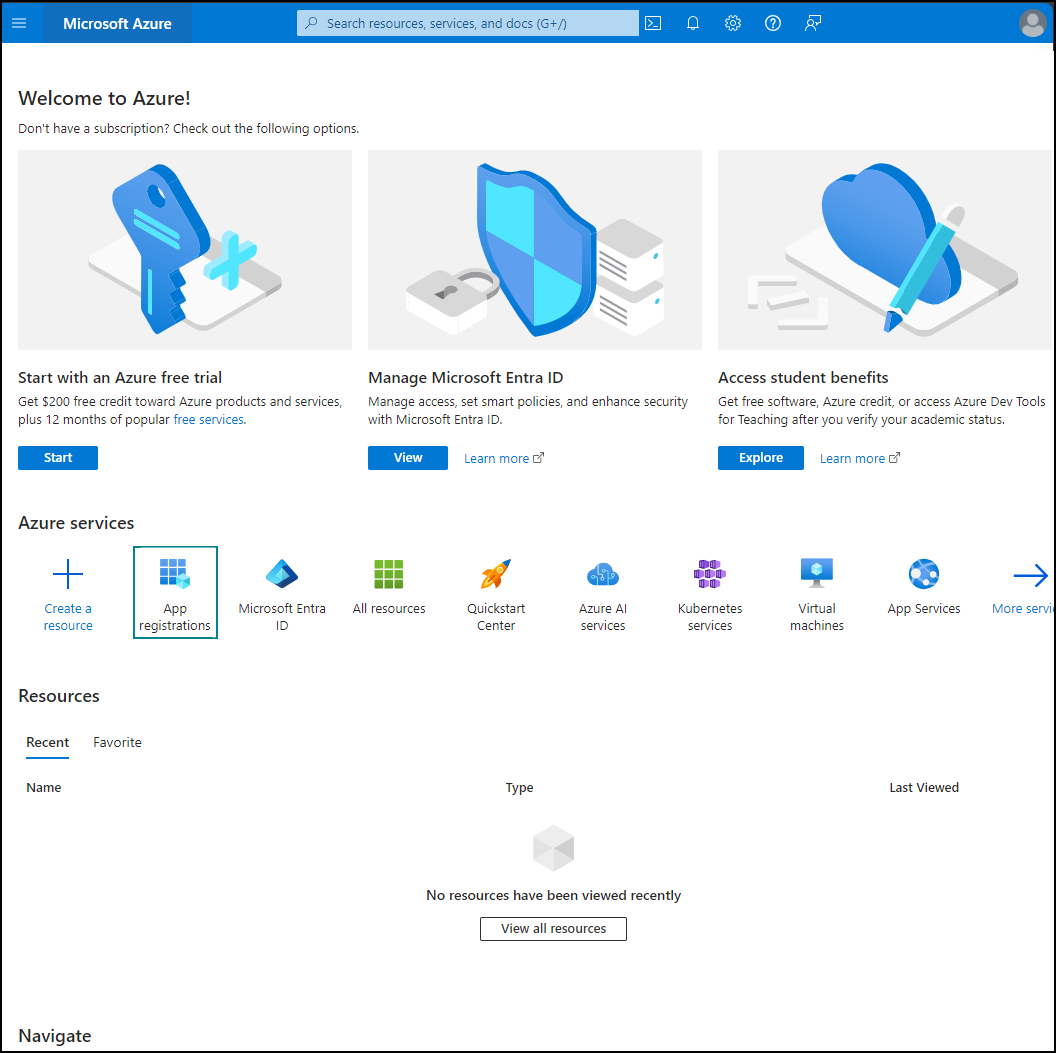
Click App registrations.
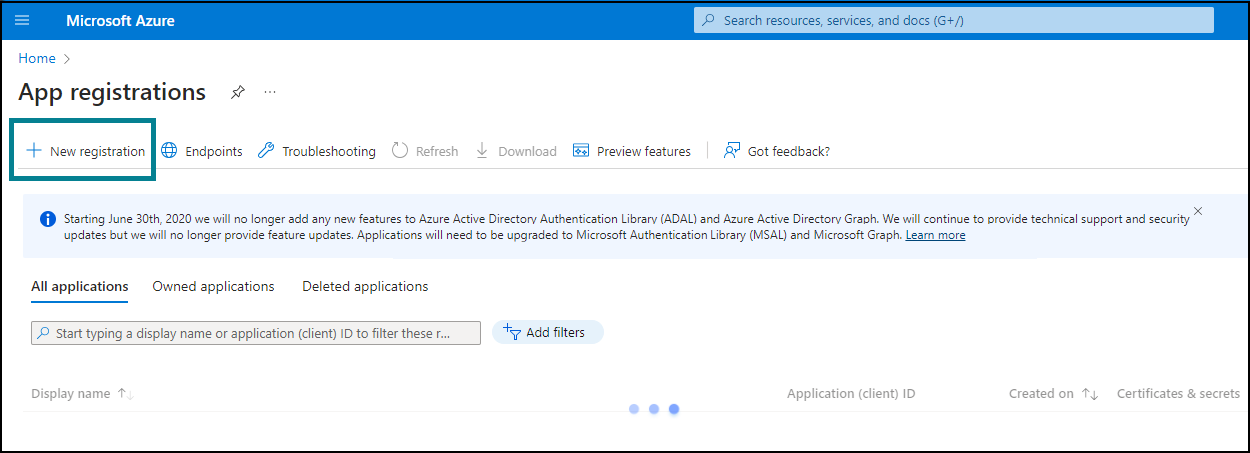
Click
 New registration.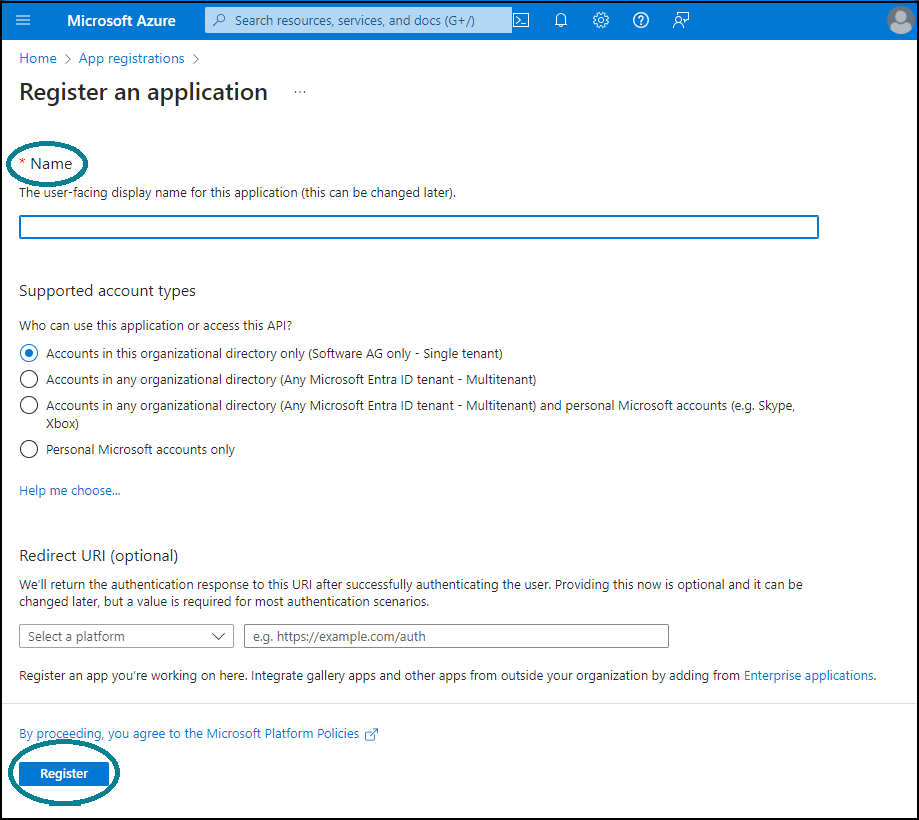
Provide a name for the Microsoft® SharePoint application.
Click Register.
When the application is registered, copy the client credential details to a text file and save the text file.
Prerequisite
ARIS is installed and running.
A license is required for the Microsoft® SharePoint: ARIS Connect server Extension pack DMS Adapter MS SharePoint TEN 1000.xml.
Open the App registrations page for your Microsoft® SharePoint application in Microsoft® Entra ID.
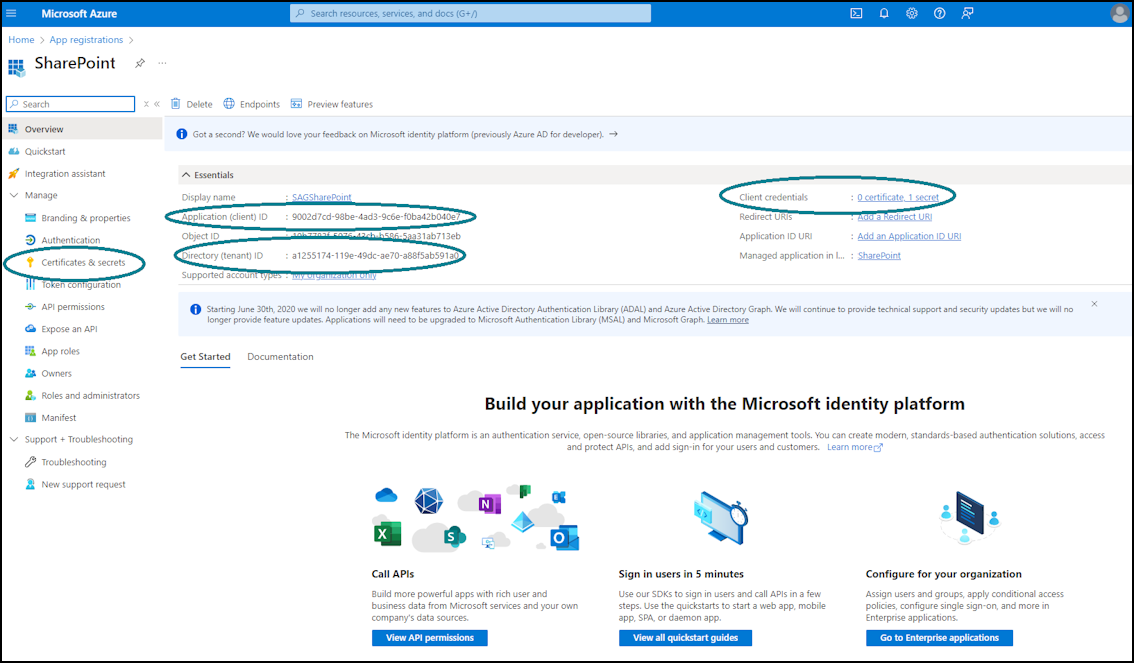
Navigate to Certificates & secrets to generate the client secret.
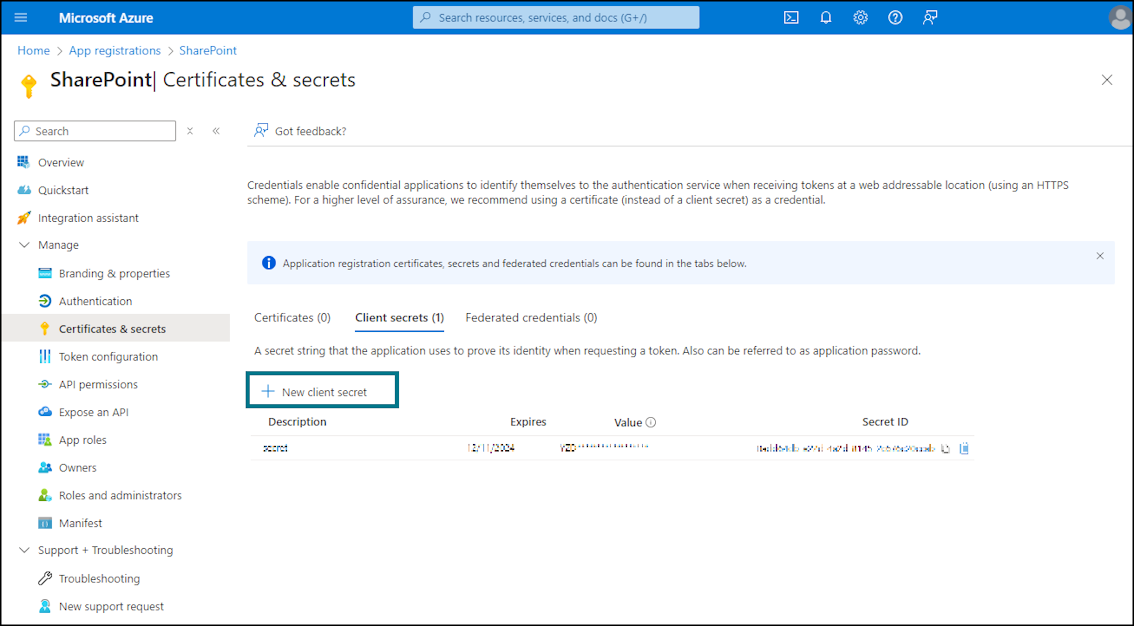
Click
New client secret. The Add a client secret panel opens.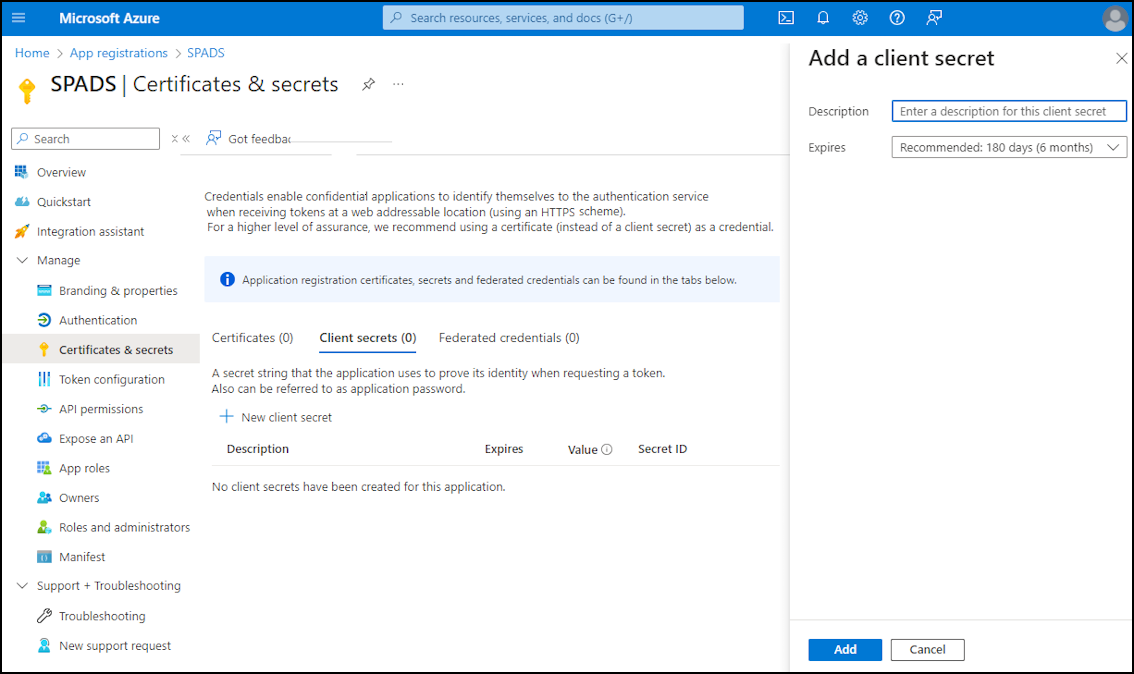
Click Add. The name of the application is provided and the client secret is generated.
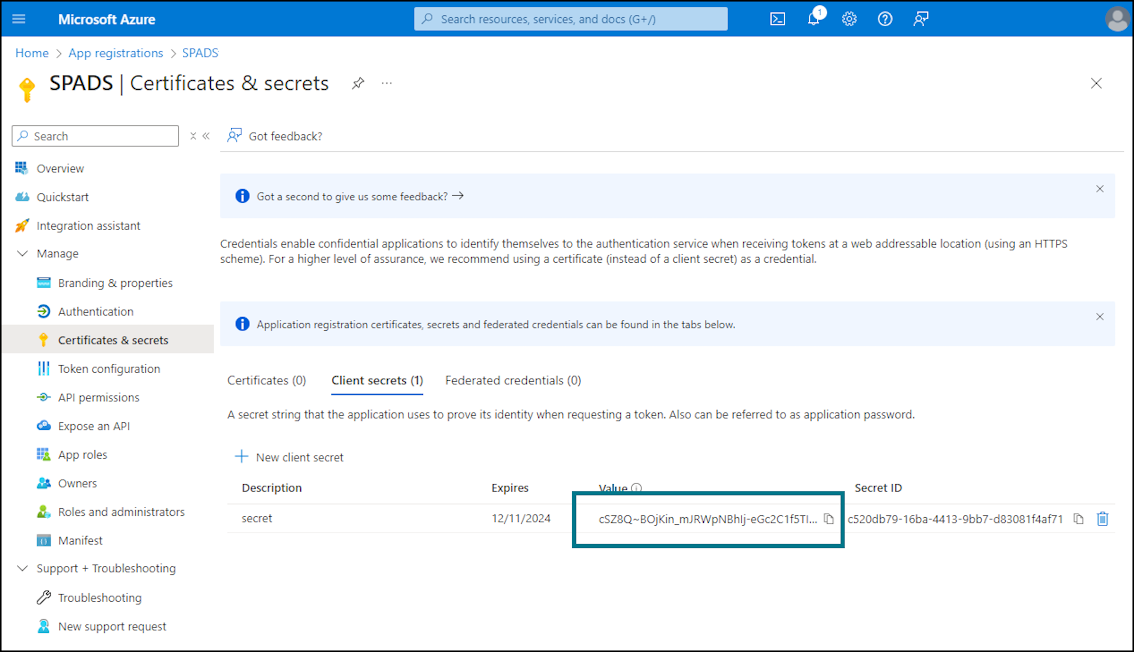
Copy the client secret and save it in a text file.
The client secret is necessary to generate the access token.
Prerequisite
ARIS is installed and running.
A license is required for the Microsoft® SharePoint: ARIS Connect server Extension pack DMS Adapter MS SharePoint TEN 1000.xml.
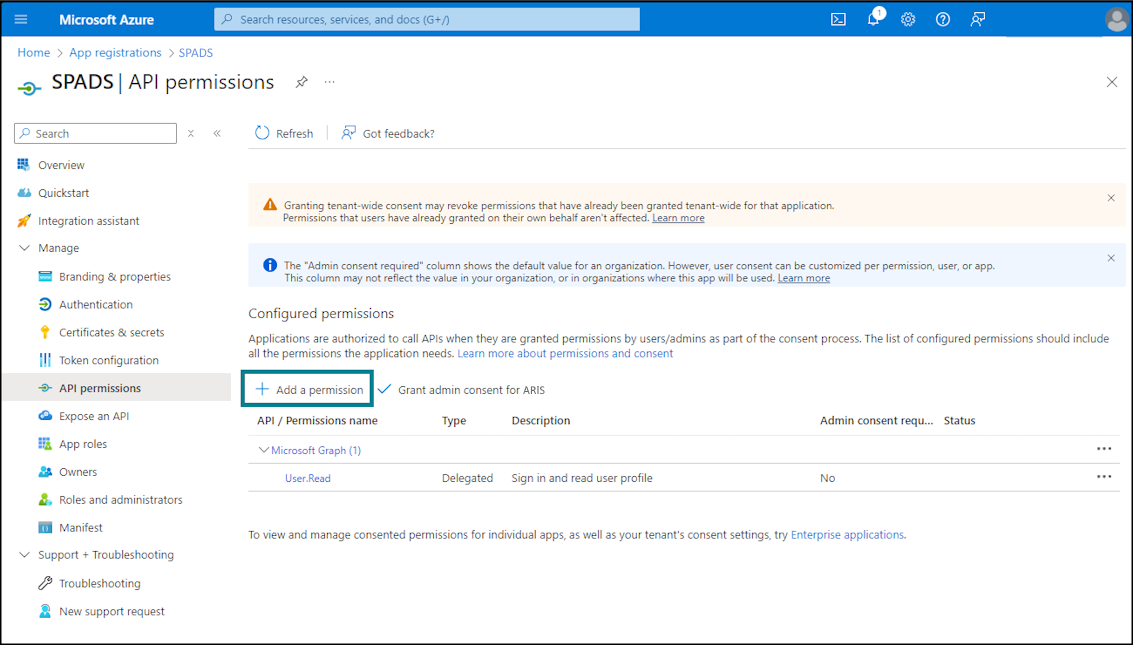
Provide the following permissions for accessing the Microsoft® SharePoint data.
Click
Add a permission.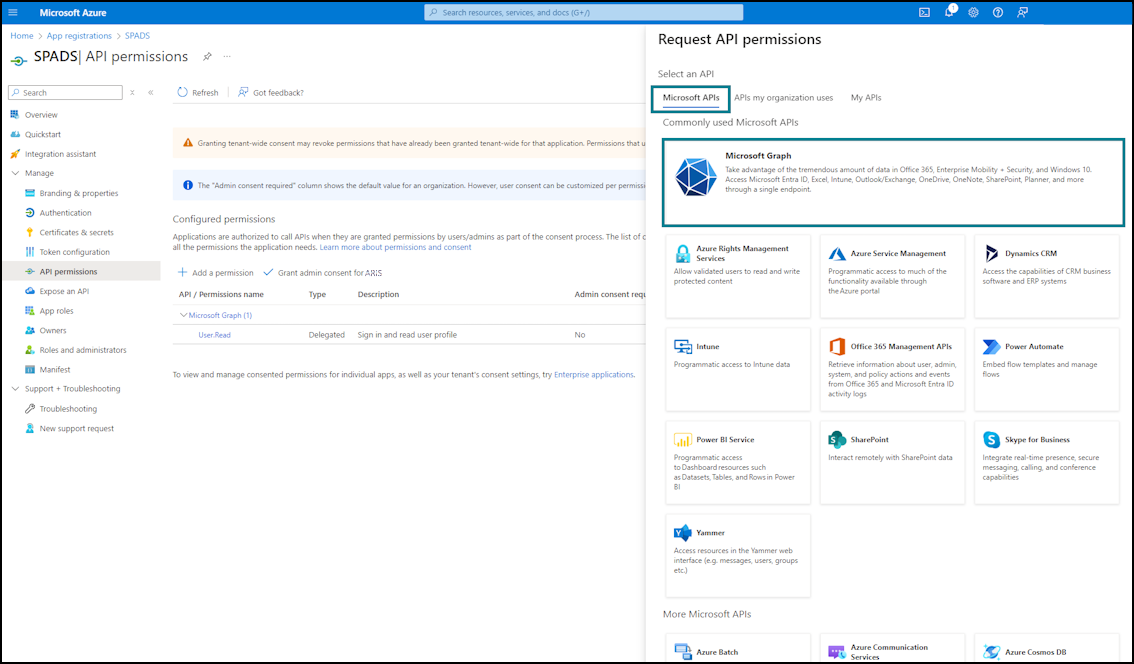
The panel is displayed.
Under Microsoft® APIs section, select Microsoft Graph.
Select Application Permissions. The panel is displayed.
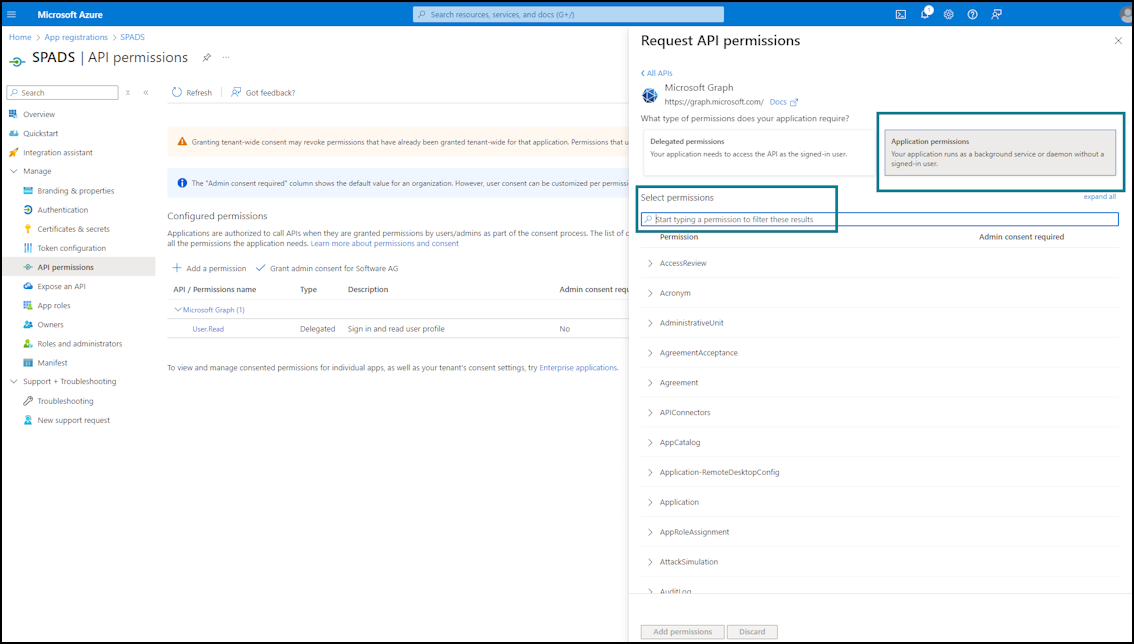
Grant at least Read permission. Search for the permission Sites.Selected.
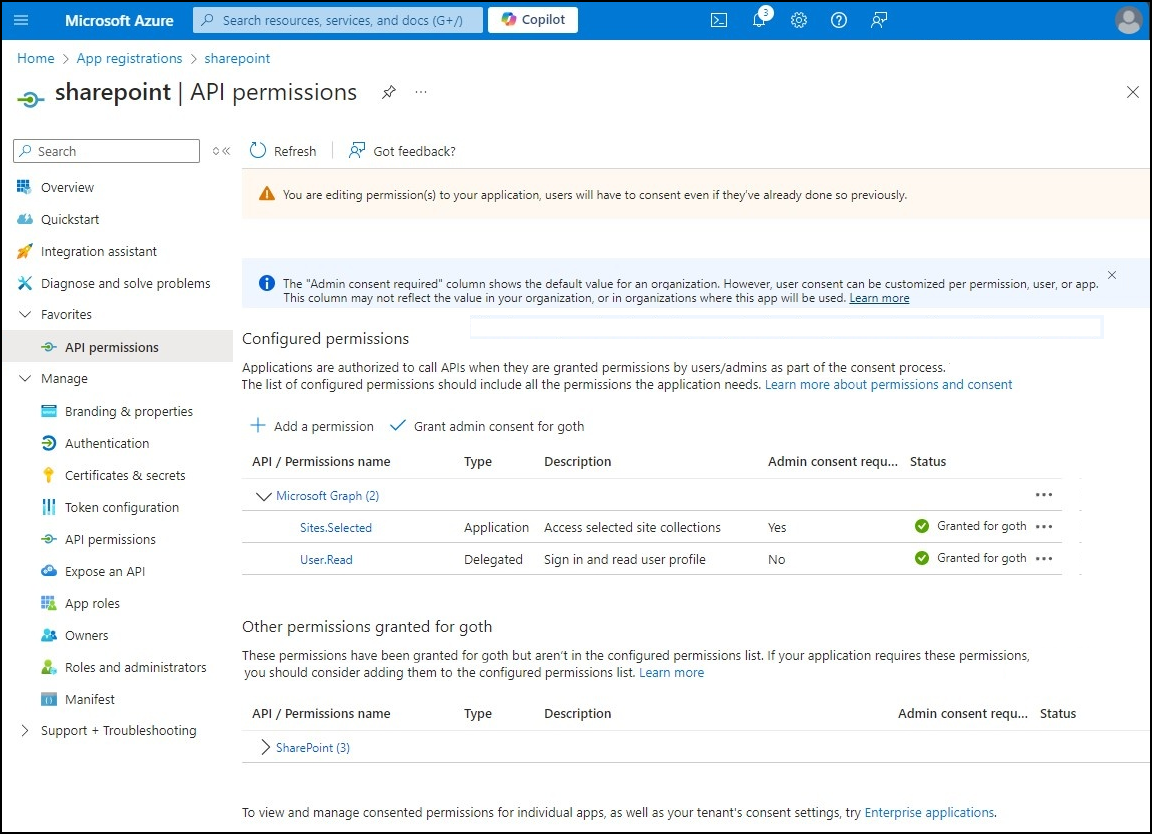
Click Grant admin consent and click Yes.
Next you need to create another application registration to grant the minimum permission to the required site collection only.
Create a new application registration by following the same steps as above up to permission assignment.
Search for the permission Sites.FullControl.All.
After completing the required steps, follow the procedure below to grant permission to the site collection from Admin. Grant Sites.FullControl.All.
Click Grant admin consent and click Yes.
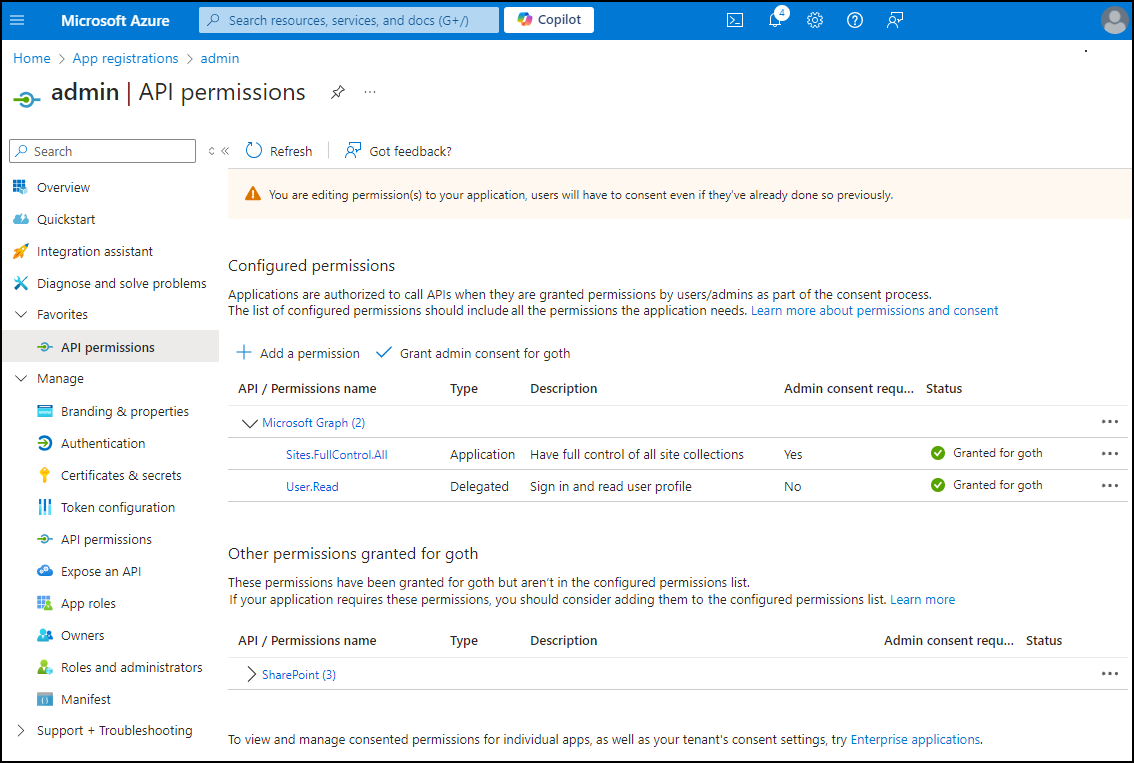
You need to generate an access token for accessing Microsoft® Graph API.
Prerequisite
ARIS is installed and running.
A license is required for the Microsoft® SharePoint: ARIS Connect server Extension pack DMS Adapter MS SharePoint TEN 1000.xml.
Invoke Microsoft® Graph API.
To generate an access token, go to postman REST client.
Invoke the login endpoint to get the access token. The login endpoint is of the following structure:
POST https://login.microsoftonline.com/<tenantId>/oauth2/v2.0/token
You find the tenant ID on the application registration page.
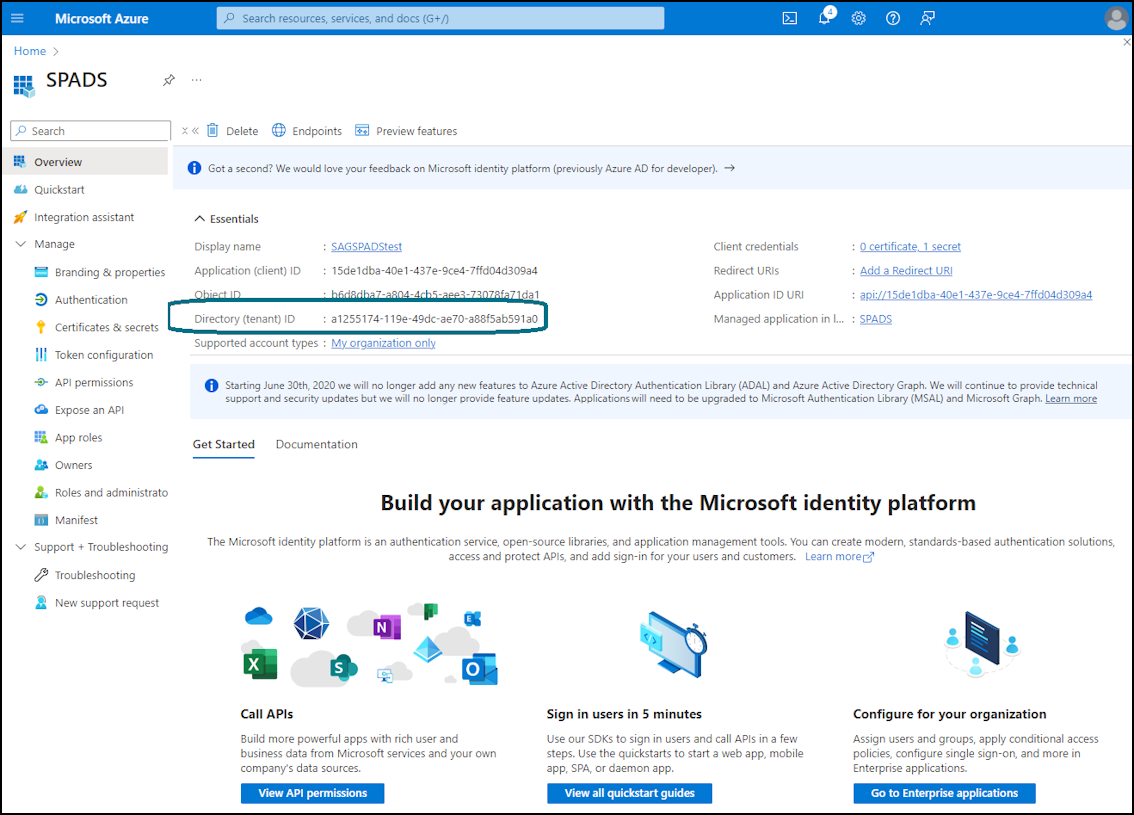
In the headers, provide the content type as application/x-www-form-urlencoded
In the Body section, select the x-www-form-urlencoded section, and fill in the following details
client_id - Generated in the Admin Application Registration page.
client_secret - Generated in the Admin Application Registration page
scope - https://graph.microsoft.com/.default
grant_type - client_credentials
Once you have entered these details, click the endpoint to generate the access token.
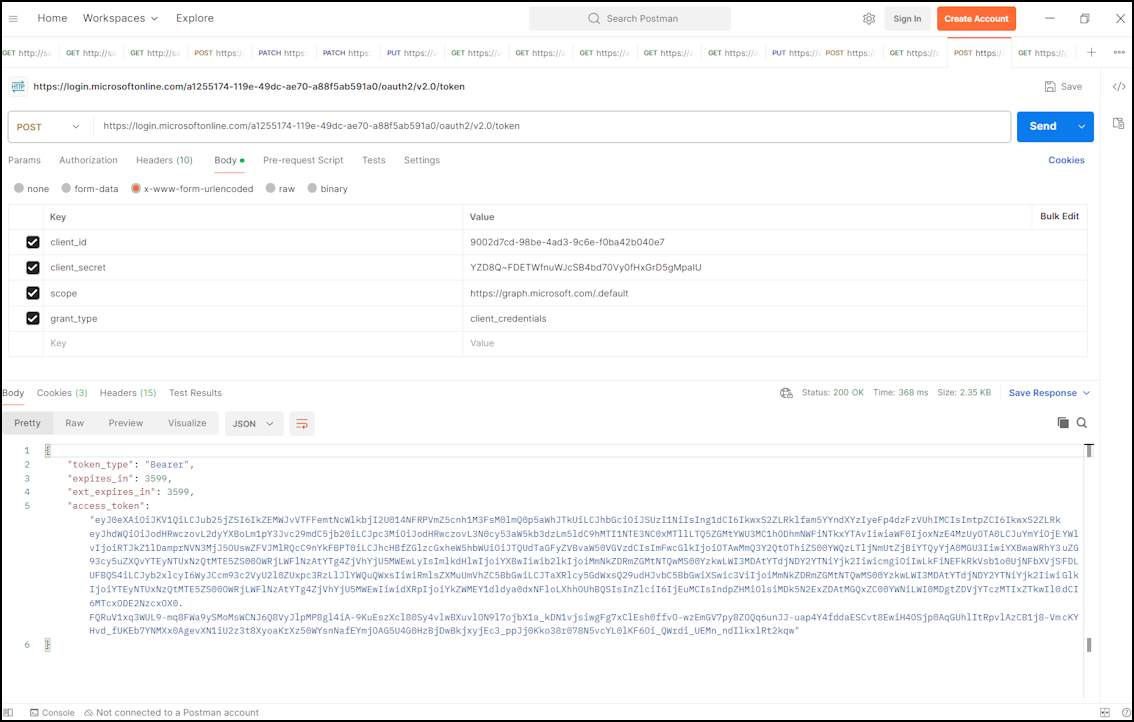
Use the above token marked as accessToken and invoke the Permission API.
Add the authorization header as bearer "eyz..." in all the requests.
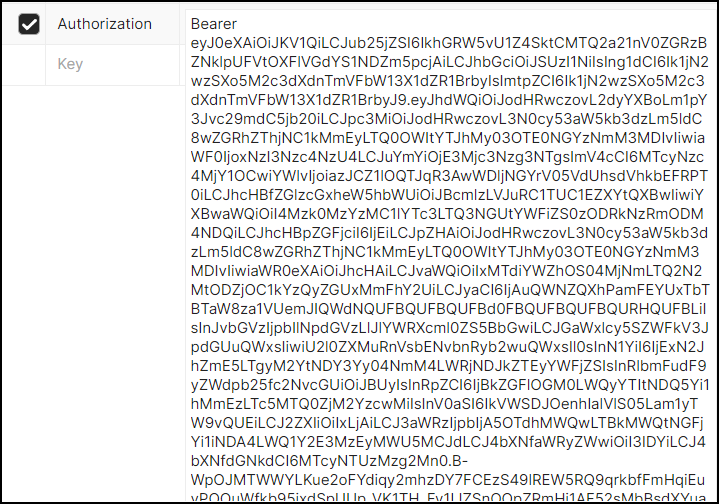
In the Permission API, assign permissions to the required site collections:
https://graph.microsoft.com/v1.0/sites/{{site-id}}/permissionsTo get the site ID, invoke sites/API.
Get All Sites.
https://graph.microsoft.com/v1.0/sites/
From the above API, you get the list of available site collections, and you can copy the site collection ID that meets your requirements.
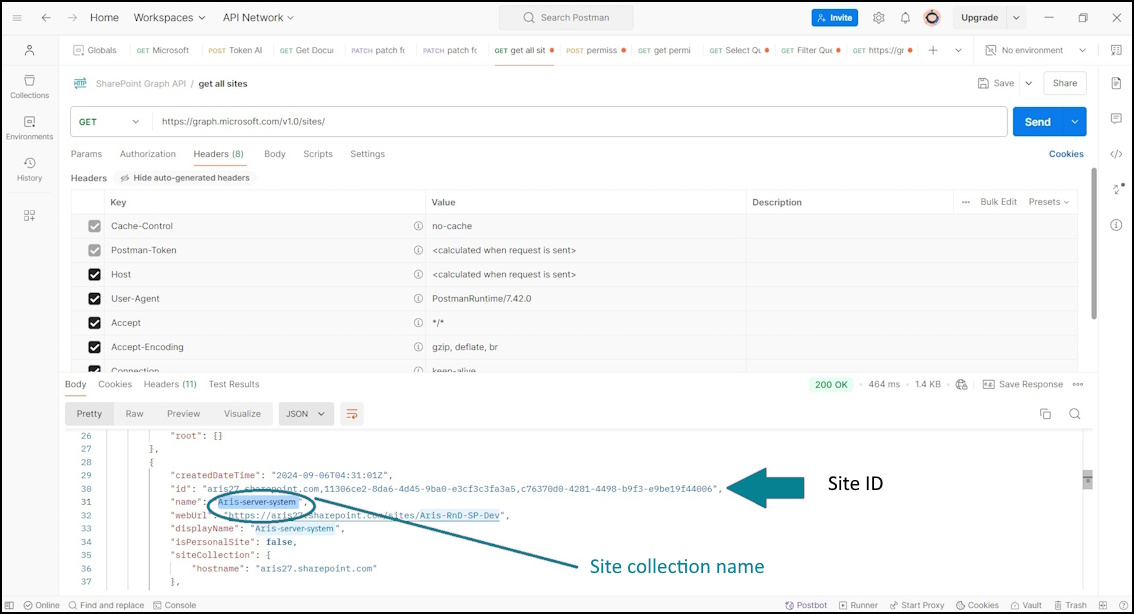
When you have the site ID, invoke the assign permission endpoint.
For the application property you need to provide the client ID of the Sharepoint Application Registration (registered with the permission Sites.Selected).
Assign Site Permission
https://graph.microsoft.com/v1.0/sites/{{site-id}}/permissionsPayload
{
"roles": [
"read"
],
"grantedToIdentities": [
{
"application": {
"id": "0d4eb394-f7c3-4904-a920-8f9cdb30d904",
"displayName": "sharepoint"
}
}
]
}
If the invocation was successful, you receive the following response:
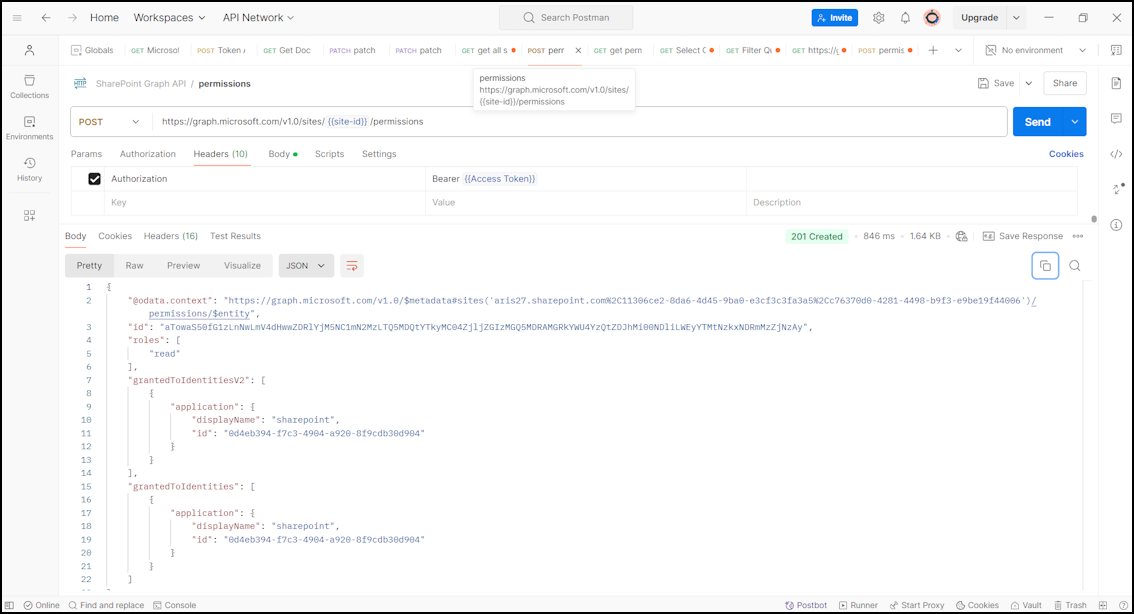
This step does not require an additional application registration.
Prerequisite
ARIS is installed and running.
A license is required for the Microsoft® SharePoint: ARIS Connect server Extension pack DMS Adapter MS SharePoint TEN 1000.xml.
Search for the following permissions:
Files.ReadWrite.All
Sites.ReadWrite.All
Click Grant admin consent for (...) and click Yes.
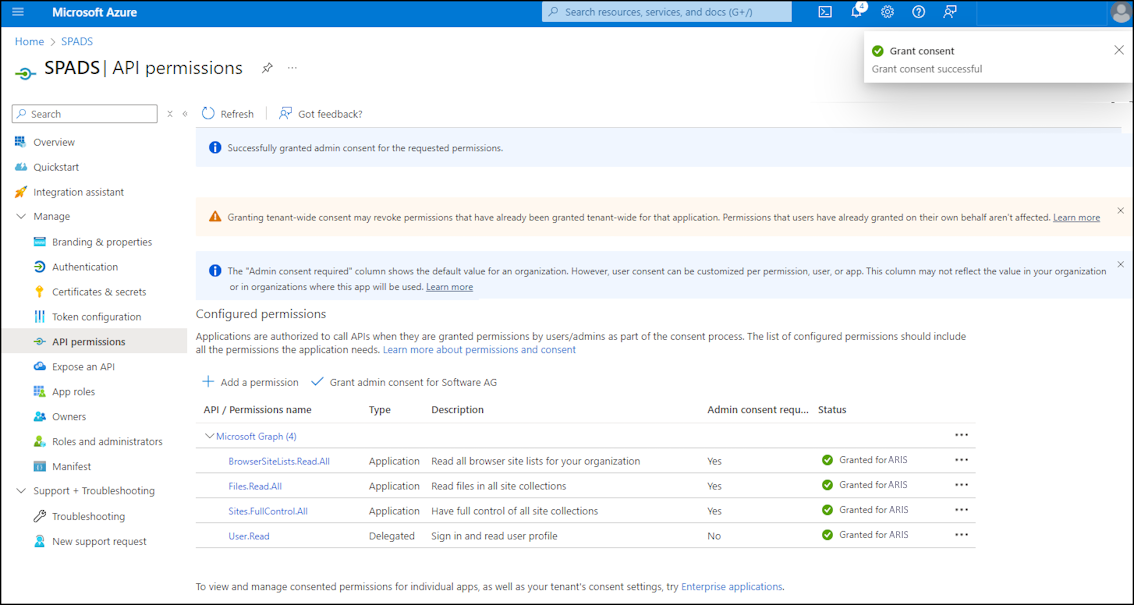
When the Microsoft® Azure application was registered and the permissions were granted, you can configure the Microsoft® Sharepoint adapter in ARIS document storage.
Prerequisite
ARIS is installed and running.
A license is required for the Microsoft® SharePoint: ARIS Connect server Extension pack DMS Adapter MS SharePoint TEN 1000.xml.
Open ARIS and log in with your user name and password.
Click
 Application launcher >
  Administration.
  Configuration is displayed.
Click the arrow next to Document management system.
Click General settings.
Click
 Edit.
Edit.Enable Use third-party document management system.
Optional: If you want to use more than one third-party document management system, enable Support for multiple document management systems.
Click
 Save.
Save.Click
 Add. The Add document management system server dialog opens.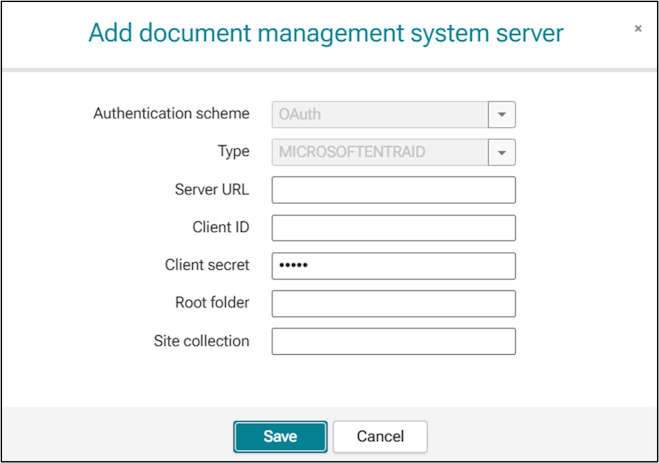
Enter the required details such as the client ID and client secret which were generated as part of the application registration steps in Microsoft® Azure.
Click Save.
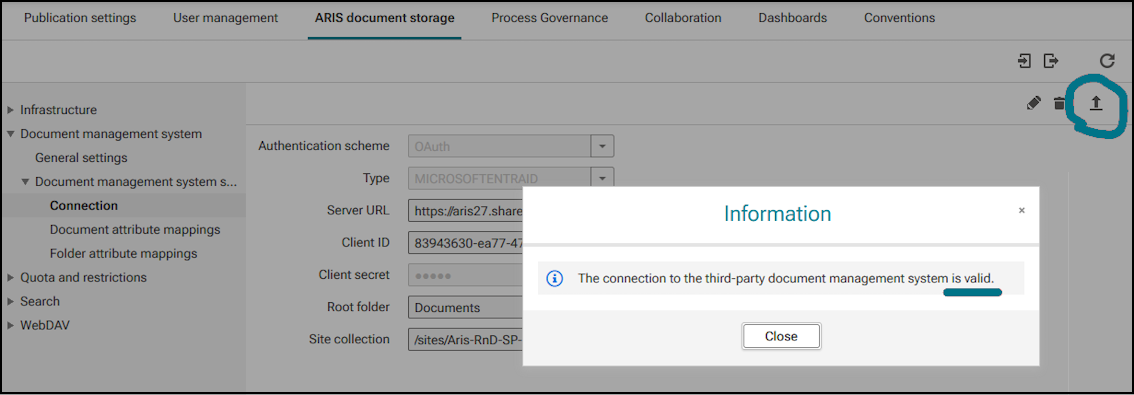
If everything is configured correctly, the following is displayed.
Click
 Test connection.